
How to invite a grandparent, sitter or the other parent
Open your family’s page, tap the + beside Helpers, and fill in their name and email. Choose a role (Parent, Grandparent, Nanny, Babysitter and others) and tap Add Helper. They get an email from you with a button to join, and you can Share the link by text too.
Where to find it
- Home
- Your family’s name
- Helpers +
Who can do this
The family owner, parents and guardians.
Step by step
To open your family’s page, tap your family’s picture and name at the top of Home.
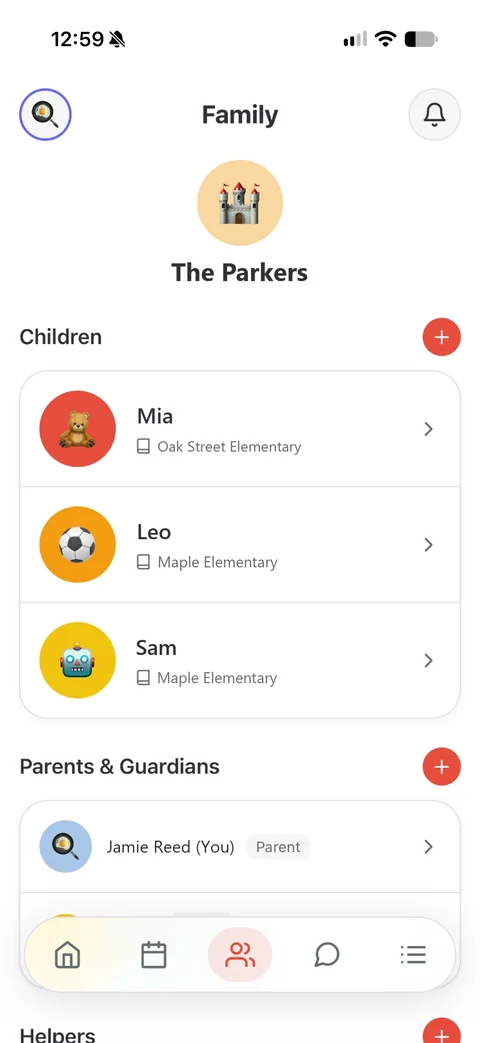
Tap the + beside Helpers. (The owner adding a second parent can use the + beside Parents & Guardians.)
Pick a colour, and fill in their Name and Email.
Under Role, choose Parent, Guardian, Grandparent, Nanny, Friend, Babysitter, Neighbor or Other.
Inviting a parent or guardian? The owner can choose what they may do with pickups.
Tap Add Helper. Then tap Share the link to send it by text as well, or Done.
What happens next
- They get an email from you saying you’ve invited them to your family.
- If they haven’t opened it a day later, the app sends you a nudge to check in with them.
- To send it again or take it back, tap the ⋯ beside them, or open their profile: Resend Invite or Revoke Invite.
Good to know
- Invitations sometimes land in Junk. A link from your own number gets opened, so Share the link helps.
- The Family plan has room for one other parent or guardian and three helpers. Premium has room for up to eight.
Checked against Kid Pickup 1.6.2 on October 21, 2026. Something look different on your phone? Tell us and we’ll fix the guide.
Read next
All help guides · Ask a person
Not using Kid Pickup yet? It’s free for 14 days, and grandparents and sitters never pay.