
How to use the Calendar’s Day, Week and Month views
Open the Calendar tab and use the Day | Week | Month switch at the top. Month shows dots on busy days; tap a date to list it. Day is an hourly view, Week lists the week’s cards. Use the arrows to move, and tap the title to jump back to today.
Where to find it
- Calendar
- Day | Week | Month
Who can do this
Everyone in the family. Grandparents and sitters see only what they’re allowed to see.
Step by step
Open the Calendar tab. It opens on Month: a dot marks each day with something on, red if something is urgent.
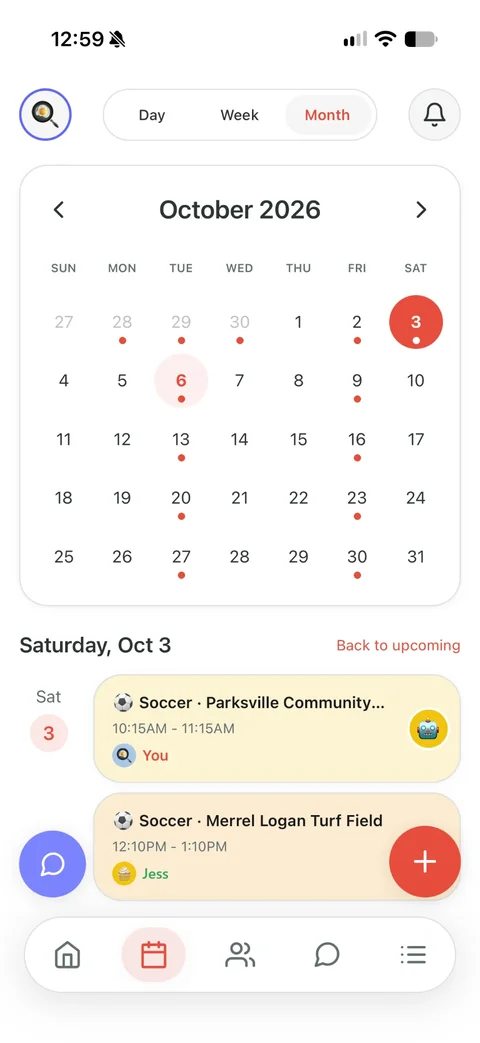
Use the arrows to change month. Tap the month’s title to jump back to this month.
Tap a date to list everything on it underneath. Tap Clear to go back to what’s coming up.
Tap Day for an hourly view of one day, and the arrows to move a day at a time.
Tap Week for that week’s pickups and events, a day at a time, and the arrows to move a week.
Tap the title in Day or Week (like “Today, Oct 21”) to come back to today. Tap any card to open it.
Good to know
- Under the month, today’s list drops a pickup once it’s done or called off. Tap the date to see everything, including those.
- Pull down on the calendar to refresh it.
- The bar at the bottom has five icons: Home, Calendar, Chat, the + and Events.
Checked against Kid Pickup 1.6.2 on October 21, 2026. Something look different on your phone? Tell us and we’ll fix the guide.
Read next
All help guides · Ask a person
Not using Kid Pickup yet? It’s free for 14 days, and grandparents and sitters never pay.